> ## Documentation Index
> Fetch the complete documentation index at: https://docs.quanorix.com/llms.txt
> Use this file to discover all available pages before exploring further.
# MCP and API keys
> Connect Cursor or Claude to your account with an API key. The key is shown only once.
# MCP and API keys
You can use Quanorix from an assistant (**Cursor** or **Claude**) with the product MCP. You authenticate with an **API key** you create under **Profile → MCP**.
The key **cannot** change billing or pair the TPA. Quotas (generate, export, regime, mixer) are the same as in the web app.
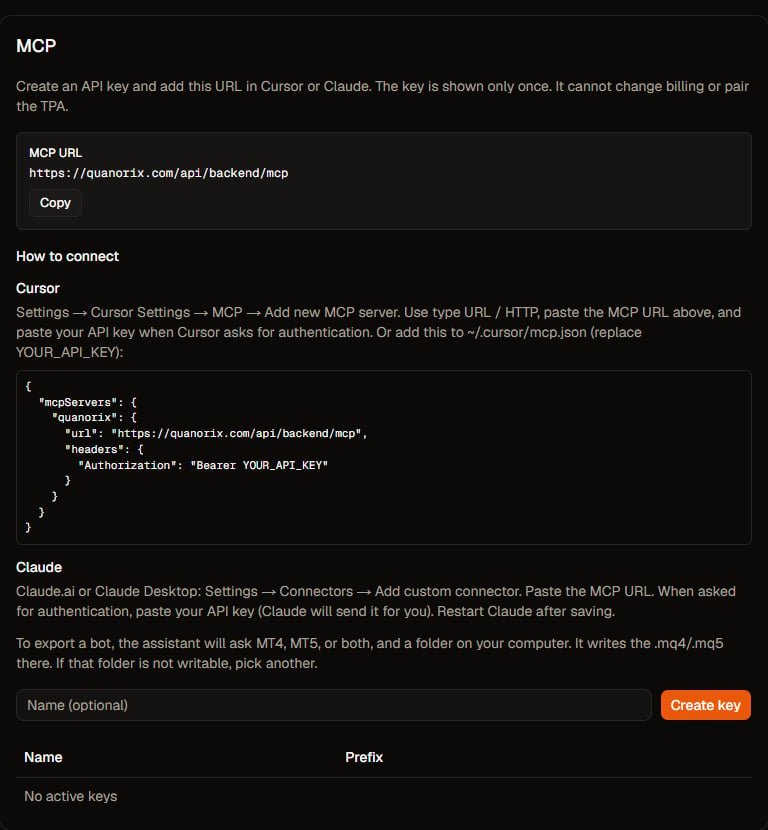 ## Create a key
1. Open **Profile → MCP**.
2. Optional: give it a name (for example, Cursor).
3. Click **Create key**.
4. **Copy the key now.** It is shown only once. After that you will see the prefix and can **revoke** it.
If you dismiss the prompt without copying, revoke that key and create another.
## MCP URL
The same tab shows the URL. Copy it from Profile so you do not mistype it. In production it is usually `https://quanorix.com/api/backend/mcp`.
## Cursor
1. **Settings → Cursor Settings → MCP → Add new MCP server**.
2. Type **URL / HTTP**.
3. Paste the MCP URL.
4. When asked for authentication, paste your API key.
Or add this to `~/.cursor/mcp.json` (replace `YOUR_API_KEY`):
```json theme={null}
{
"mcpServers": {
"quanorix": {
"url": "https://quanorix.com/api/backend/mcp",
"headers": {
"Authorization": "Bearer YOUR_API_KEY"
}
}
}
}
```
## Claude
1. Claude.ai or Claude Desktop: **Settings → Connectors → Add custom connector**.
2. Paste the MCP URL.
3. When asked for authentication, paste your API key (Claude sends it for you).
4. Restart Claude after saving.
## What you can ask
With your account, the assistant can:
* Inspect the Databank, plan quotas, and settings.
* Explain product features (e.g. what [prop firm simulation](/en/portfolios/propfirm-simulation) rules mean, or [broker aliases](/en/export/mt4-mt5#broker-symbol-names)). It does **not** run the prop firm simulation: open Portfolios → Simulate.
* Start generation, validation, backtest, mixer, and data downloads (they run as background [jobs](/en/jobs/overview), same as the web app).
* Export a bot: it will ask MT4, MT5, or both, and a **folder on your computer** for the `.mq4` / `.mq5`. If that folder is not writable, pick another.
## Revoke
In the keys table, **Revoke** invalidates that key immediately. Create another if you still use Cursor or Claude.
## Next
* [Plans and billing](/en/billing/plans)
* [Generator](/en/generator/overview)
* [Jobs](/en/jobs/overview)
This documentation is built and hosted on [Mintlify](https://mintlify.com), a developer documentation platform.
## Create a key
1. Open **Profile → MCP**.
2. Optional: give it a name (for example, Cursor).
3. Click **Create key**.
4. **Copy the key now.** It is shown only once. After that you will see the prefix and can **revoke** it.
If you dismiss the prompt without copying, revoke that key and create another.
## MCP URL
The same tab shows the URL. Copy it from Profile so you do not mistype it. In production it is usually `https://quanorix.com/api/backend/mcp`.
## Cursor
1. **Settings → Cursor Settings → MCP → Add new MCP server**.
2. Type **URL / HTTP**.
3. Paste the MCP URL.
4. When asked for authentication, paste your API key.
Or add this to `~/.cursor/mcp.json` (replace `YOUR_API_KEY`):
```json theme={null}
{
"mcpServers": {
"quanorix": {
"url": "https://quanorix.com/api/backend/mcp",
"headers": {
"Authorization": "Bearer YOUR_API_KEY"
}
}
}
}
```
## Claude
1. Claude.ai or Claude Desktop: **Settings → Connectors → Add custom connector**.
2. Paste the MCP URL.
3. When asked for authentication, paste your API key (Claude sends it for you).
4. Restart Claude after saving.
## What you can ask
With your account, the assistant can:
* Inspect the Databank, plan quotas, and settings.
* Explain product features (e.g. what [prop firm simulation](/en/portfolios/propfirm-simulation) rules mean, or [broker aliases](/en/export/mt4-mt5#broker-symbol-names)). It does **not** run the prop firm simulation: open Portfolios → Simulate.
* Start generation, validation, backtest, mixer, and data downloads (they run as background [jobs](/en/jobs/overview), same as the web app).
* Export a bot: it will ask MT4, MT5, or both, and a **folder on your computer** for the `.mq4` / `.mq5`. If that folder is not writable, pick another.
## Revoke
In the keys table, **Revoke** invalidates that key immediately. Create another if you still use Cursor or Claude.
## Next
* [Plans and billing](/en/billing/plans)
* [Generator](/en/generator/overview)
* [Jobs](/en/jobs/overview)
This documentation is built and hosted on [Mintlify](https://mintlify.com), a developer documentation platform.