> ## Documentation Index
> Fetch the complete documentation index at: https://docs.quanorix.com/llms.txt
> Use this file to discover all available pages before exploring further.
# Install and pair
> Win/Linux download, tray Link action, web authorization, and online checks.
# Install and pair
This is the most important TPA flow: without an agent that is **linked and online**, compute jobs that require the TPA will fail.
## 1. Download and install
1. In the web app, open **Profile → TPA**.
2. Under **Download TPA**, choose **Windows** or **Linux**.
3. Install or unpack the package and **start** the TPA.
 You should see a **system tray** icon. At first it is usually **gray** with *Quanorix TPA (offline)*.
If download is not available in your environment, Profile shows a configuration notice. In production you should see the package link and version.
## 2. Start pairing from the TPA (Link)
You do not need to invent a URL — the TPA opens the browser for you.
1. Right-click (or click) the tray icon.
2. Choose **Link** / **Vincular** (the same action exists as a **Link** button in TPA **Settings**).
3. The browser opens Quanorix pairing (`/agent/pair?code=…`).
You should see a **system tray** icon. At first it is usually **gray** with *Quanorix TPA (offline)*.
If download is not available in your environment, Profile shows a configuration notice. In production you should see the package link and version.
## 2. Start pairing from the TPA (Link)
You do not need to invent a URL — the TPA opens the browser for you.
1. Right-click (or click) the tray icon.
2. Choose **Link** / **Vincular** (the same action exists as a **Link** button in TPA **Settings**).
3. The browser opens Quanorix pairing (`/agent/pair?code=…`).
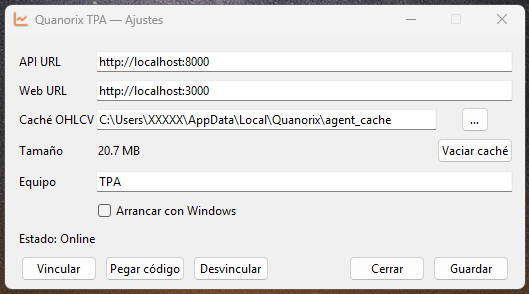 You must be **signed in** to the Quanorix account you want to link. If there is no session, the app asks you to log in and then returns to pairing.
## 3. Authorize in the browser
On the **Link Trading Platform Agent** page:
1. Check the **device** name shown.
2. Click **Link** / **Vincular** to confirm that PC may run compute jobs for your account.
3. Wait for the success message (*Agent linked. You can return to the TPA.*).
4. **Close that browser tab/window** (or use *Go to app*). The TPA no longer needs that page open.
You may also see a short local page like *Linking OK. You can close this window* — close it safely.
## 4. Verify the link
Do **both** checks; one alone is not enough.
### In Profile (web app)
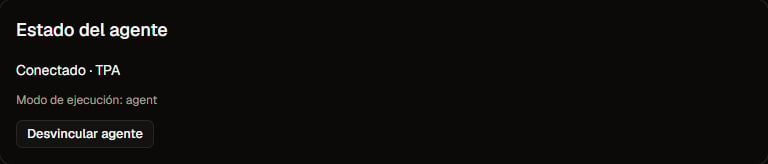
Open **Profile → Agent status**:
| Message | Meaning |
| ------------------------ | ----------------------------------------- |
| **No agent linked** | Pairing did not finish or you unlinked |
| **Linked (offline) · …** | An agent exists, but it is not online now |
| **Connected · …** | Linked **and** online — ready for jobs |
After a successful pairing with the TPA running you should see **Connected** (or at least **Linked** if you just quit the TPA).
You must be **signed in** to the Quanorix account you want to link. If there is no session, the app asks you to log in and then returns to pairing.
## 3. Authorize in the browser
On the **Link Trading Platform Agent** page:
1. Check the **device** name shown.
2. Click **Link** / **Vincular** to confirm that PC may run compute jobs for your account.
3. Wait for the success message (*Agent linked. You can return to the TPA.*).
4. **Close that browser tab/window** (or use *Go to app*). The TPA no longer needs that page open.
You may also see a short local page like *Linking OK. You can close this window* — close it safely.
## 4. Verify the link
Do **both** checks; one alone is not enough.
### In Profile (web app)
Open **Profile → Agent status**:
| Message | Meaning |
| ------------------------ | ----------------------------------------- |
| **No agent linked** | Pairing did not finish or you unlinked |
| **Linked (offline) · …** | An agent exists, but it is not online now |
| **Connected · …** | Linked **and** online — ready for jobs |
After a successful pairing with the TPA running you should see **Connected** (or at least **Linked** if you just quit the TPA).
 ### In the tray (PC)
After web authorization, the icon should move from **gray (offline)** to **green (online)**, tooltip *Quanorix TPA (online)*.
If it stays gray:
1. Confirm you clicked **Link** on the web page (not only opened it).
2. Confirm the TPA is still running.
3. Check network / firewall to the product API.
4. Run **Link** again from the tray.
While a job runs, the icon may turn **blue (running)** and return to green when idle.
## 5. Unlink
* From **Profile**: **Unlink agent**.
* From the TPA: clear local tokens (or pair another machine; a new pairing replaces the active agent).
## Flow at a glance
```
Profile → Download TPA → Install / start
→ Tray gray (offline)
→ Tray menu: Link
→ Browser: sign in → click Link
→ Close pairing tab
→ Profile: Connected ·
→ Tray green (online)
```
## Next
* [Data cache](/en/tpa/cache) — first M1 sync and deltas.
* [Troubleshooting](/en/troubleshooting) — failed pairing, offline, blocked jobs.
### In the tray (PC)
After web authorization, the icon should move from **gray (offline)** to **green (online)**, tooltip *Quanorix TPA (online)*.
If it stays gray:
1. Confirm you clicked **Link** on the web page (not only opened it).
2. Confirm the TPA is still running.
3. Check network / firewall to the product API.
4. Run **Link** again from the tray.
While a job runs, the icon may turn **blue (running)** and return to green when idle.
## 5. Unlink
* From **Profile**: **Unlink agent**.
* From the TPA: clear local tokens (or pair another machine; a new pairing replaces the active agent).
## Flow at a glance
```
Profile → Download TPA → Install / start
→ Tray gray (offline)
→ Tray menu: Link
→ Browser: sign in → click Link
→ Close pairing tab
→ Profile: Connected ·
→ Tray green (online)
```
## Next
* [Data cache](/en/tpa/cache) — first M1 sync and deltas.
* [Troubleshooting](/en/troubleshooting) — failed pairing, offline, blocked jobs.