

MCP and API keys
You can use Quanorix from an assistant (Cursor or Claude) with the product MCP. You authenticate with an API key you create under Profile → MCP. The key cannot change billing or pair the TPA. Quotas (generate, export, regime, mixer) are the same as in the web app.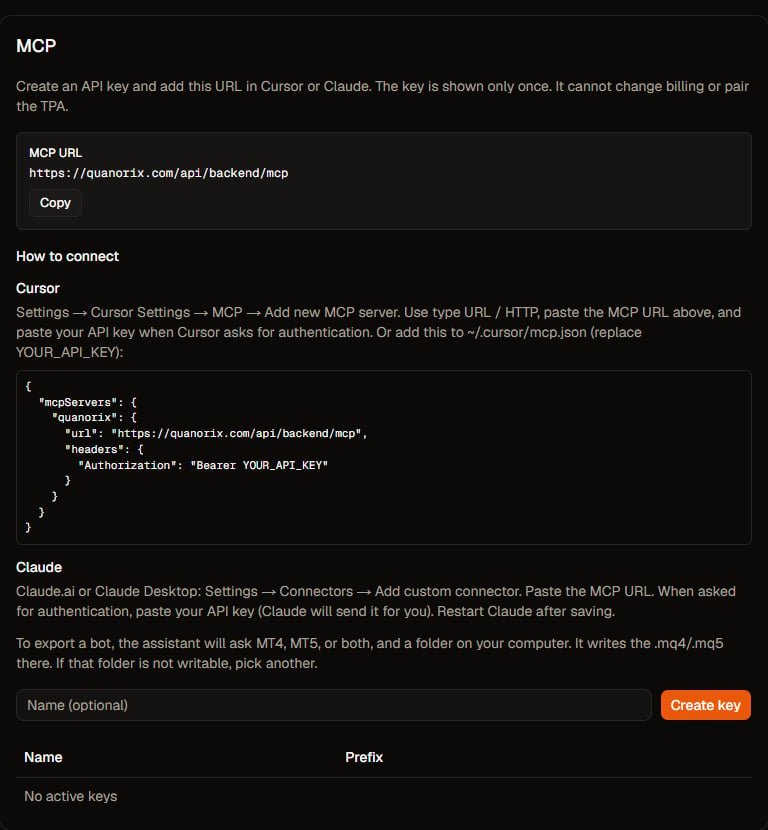
Profile → MCP. Click to zoom.
Create a key
- Open Profile → MCP.
- Optional: give it a name (for example, Cursor).
- Click Create key.
- Copy the key now. It is shown only once. After that you will see the prefix and can revoke it.
MCP URL
The same tab shows the URL. Copy it from Profile so you do not mistype it. In production it is usuallyhttps://quanorix.com/api/backend/mcp.
Cursor
- Settings → Cursor Settings → MCP → Add new MCP server.
- Type URL / HTTP.
- Paste the MCP URL.
- When asked for authentication, paste your API key.
~/.cursor/mcp.json (replace YOUR_API_KEY):
Claude
- Claude.ai or Claude Desktop: Settings → Connectors → Add custom connector.
- Paste the MCP URL.
- When asked for authentication, paste your API key (Claude sends it for you).
- Restart Claude after saving.
What you can ask
With your account, the assistant can:- Inspect the Databank, plan quotas, and settings.
- Explain product features (e.g. what prop firm simulation rules mean, or broker aliases). It does not run the prop firm simulation: open Portfolios → Simulate.
- Start generation, validation, backtest, mixer, and data downloads (they run as background jobs, same as the web app).
- Export a bot: it will ask MT4, MT5, or both, and a folder on your computer for the
.mq4/.mq5. If that folder is not writable, pick another.