

Install and pair
This is the most important TPA flow: without an agent that is linked and online, compute jobs that require the TPA will fail.1. Download and install
- In the web app, open Profile → TPA.
- Under Download TPA, choose Windows, Linux, or macOS (if shown). Next to the title you will see the published version; TPA Settings also shows the installed version. When a newer build is published, Settings shows a non-intrusive update notice so you can download again from Profile.
- In Settings you can switch the TPA UI language (Spanish / English); it is stored in local config.
- Install or unpack the package and start the TPA.

Profile → TPA: Windows/Linux download. Click the image to zoom.
2. Start pairing from the TPA (Link)
You do not need to invent a URL — the TPA opens the browser for you.- Right-click (or click) the tray icon.
- Choose Link / Vincular (the same action exists as a Link button in TPA Settings).
- The browser opens Quanorix pairing (
/agent/pair?code=…).
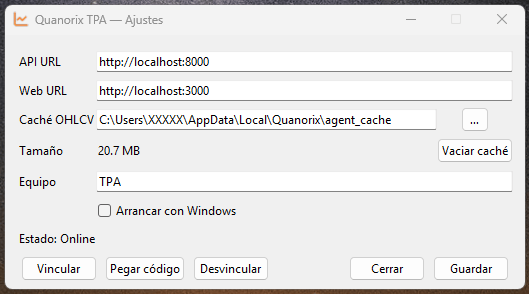
TPA Settings window (Link / Paste code, URLs, and cache). Click to zoom.
3. Authorize in the browser
On the Link Trading Platform Agent page:- Check the device name shown.
- Click Link / Vincular to confirm that PC may run compute jobs for your account.
- Wait for the success message (Agent linked. You can return to the TPA.).
- Close that browser tab/window (or use Go to app). The TPA no longer needs that page open.
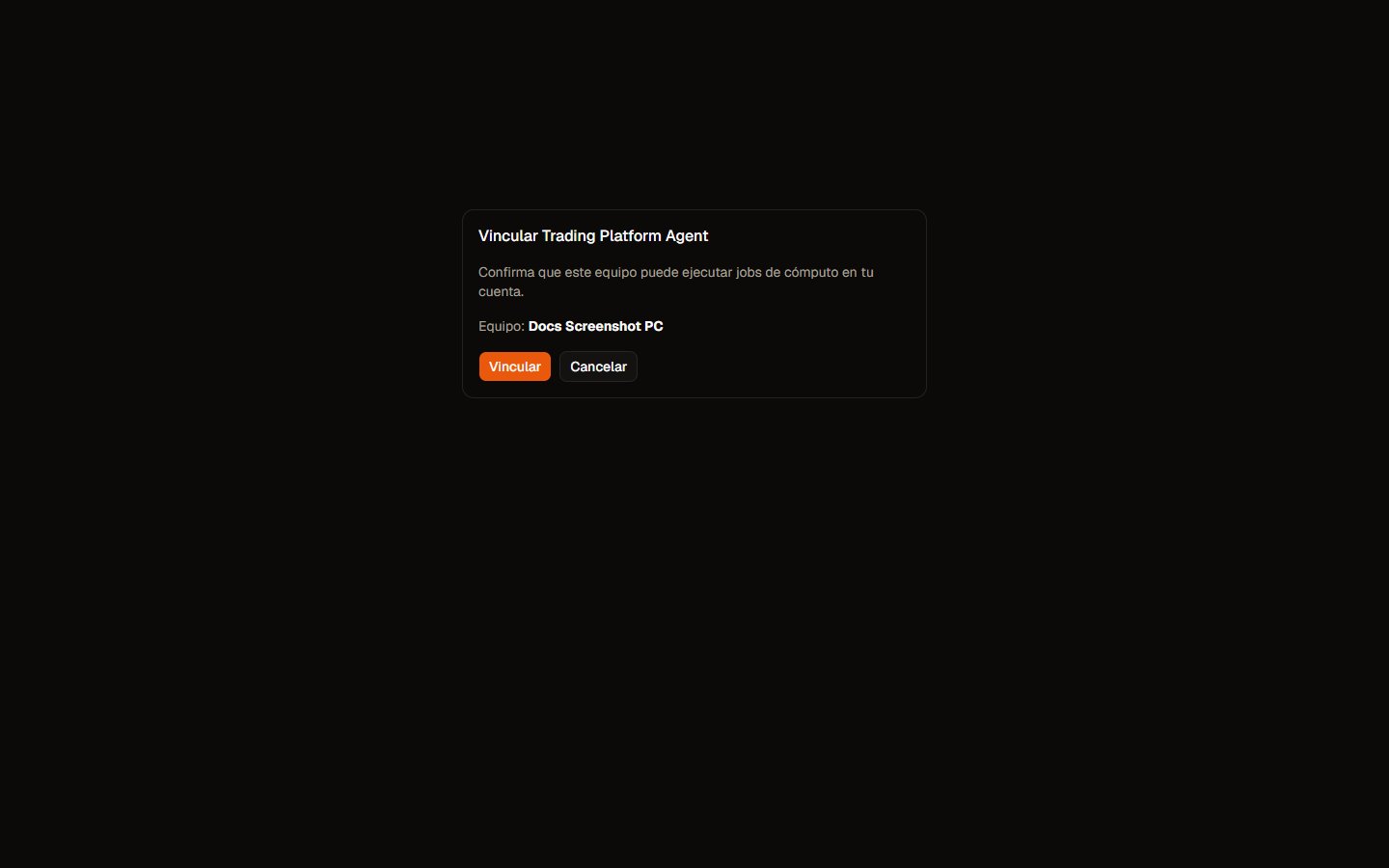
Web pairing page. Click to zoom.
4. Verify the link
Do both checks; one alone is not enough.In Profile (web app)
Open Profile → Agent status:
After a successful pairing with the TPA running you should see Connected (or at least Linked if you just quit the TPA).

Example: agent Connected (online). Click to zoom.
In the tray (PC)
After web authorization, the icon should move from gray (offline) to green (online), tooltip Quanorix TPA (online). If it stays gray:- Confirm you clicked Link on the web page (not only opened it).
- Confirm the TPA is still running.
- Check network / firewall to the product API.
- Run Link again from the tray.
5. Unlink
- From Profile: Unlink agent.
- From the TPA: clear local tokens (or pair another machine; a new pairing replaces the active agent).
Flow at a glance
Next
- Data cache — first M1 sync and deltas.
- Troubleshooting — failed pairing, offline, blocked jobs.