

Data cache
The TPA keeps a local M1 bar cache on disk for symbols/ranges requested by compute jobs, so it does not re-download full history every run.First sync
- The first time a job needs a wide range, the agent downloads a full M1 pack. It can take a long time (minutes to hours depending on symbol, range, and network).
- Seeing the TPA in running (blue icon) during sync or generation is expected.
- Avoid quitting the TPA mid-sync if you can.
Later updates (deltas)
When the requested range is already covered, the agent reuses local data and only fetches tail deltas when it needs to extend the end. That is usually much faster than the first load.Good practices
- Download the symbol first in Data (cloud) for the range you will use.
- Start Generator IS ranges reasonably — avoid decades “just in case.”
- Leave disk space for the TPA cache folder (configurable in agent Settings).
- If the cache is corrupt or you need space, use Clear cache / Vaciar caché in Settings, then sync again.
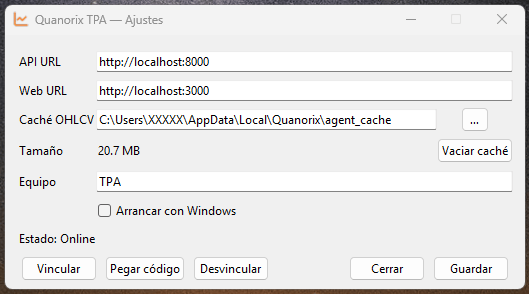
TPA Settings: OHLCV cache path and Clear cache. Click to zoom.
Relation to the web app
Data downloads feed the product store. The TPA cache is a working copy on your PC for fast evaluation. Typical flow needs both: cloud data + online agent with a ready cache.Common issues
- Endless or failed sync → network, API, or range too large; shrink dates and retry.
- Job fails asking for data → confirm Data download and relaunch with TPA online.
- See Troubleshooting.